GoHighLevel setup
Custom Values vs custom fields in GoHighLevel: which one to use
The difference between GHL Custom Values and custom fields, with examples of when each is the right choice and how to reference them in emails and workflows.

Hanzla Amjad
· 3 min read
These two get mixed up constantly, partly because the names are so similar. The difference is simple once you see it: a custom field belongs to a contact; a Custom Value belongs to the whole sub-account.
Custom fields: information about one person
A custom field stores something different for every contact. Their budget, their preferred appointment time, which state they’re in, the answer they gave on a quiz. When you look at a contact record, custom fields are part of their profile.
You reference them with contact merge fields, for example {{contact.budget}}. When a workflow sends an email to 500 people, each one sees their own value.
Use custom fields for:
- Form and survey answers.
- Qualification and routing decisions.
- Appointment or deal details that differ by contact.
- Anything you want to filter or segment by.
Custom Values: one setting for the whole account
A Custom Value is a single piece of information for the sub-account, the same for everyone. The business phone number, the booking link, the company address, the owner’s name, this month’s offer.
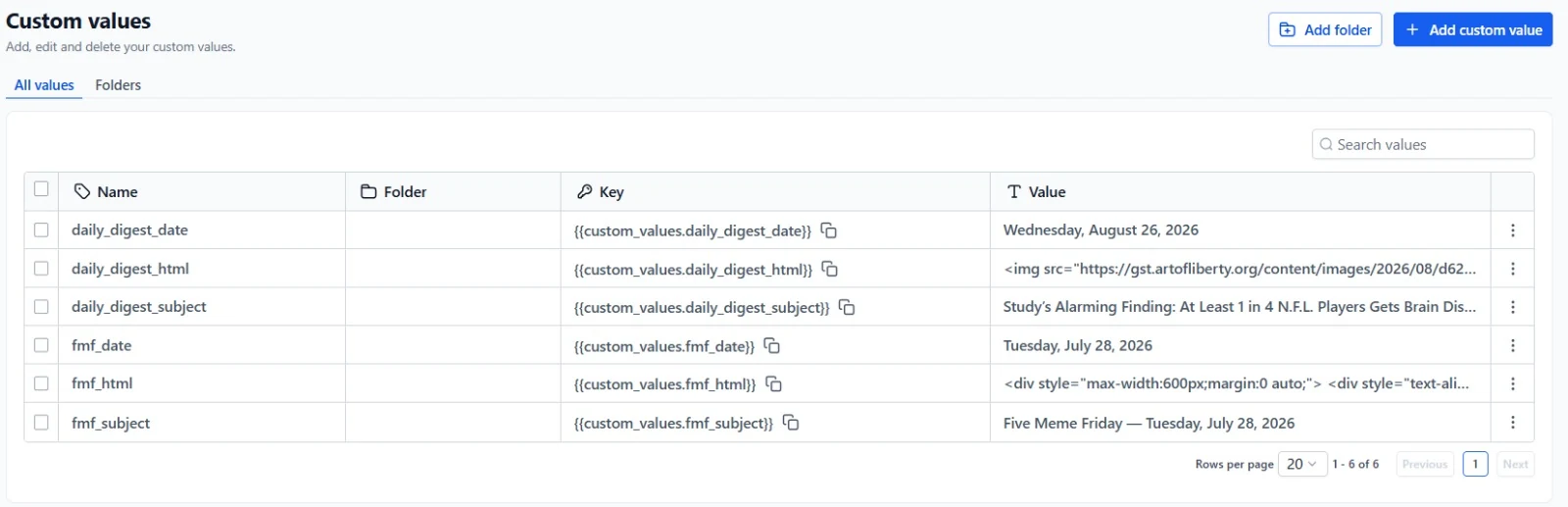
You reference them like {{custom_values.booking_link}}. Change the value once and every email, SMS, funnel and workflow that uses it updates instantly.
Use Custom Values for:
- Business details that appear in lots of templates.
- Links you might change later, like a calendar or review link.
- Content that’s the same for every recipient, like a newsletter body.
- Anything in a snapshot that each new client needs to replace with their own details.
A real example
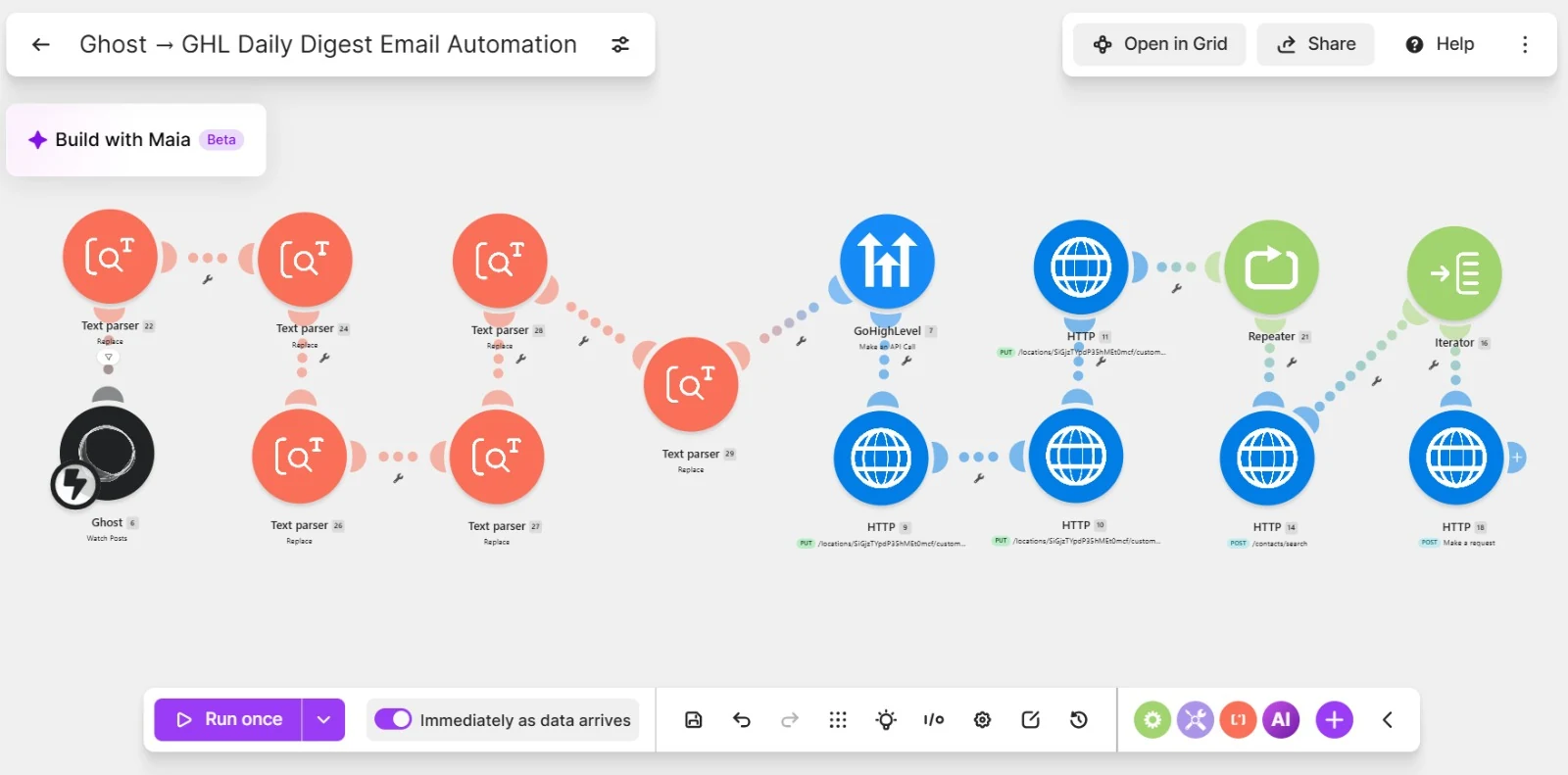
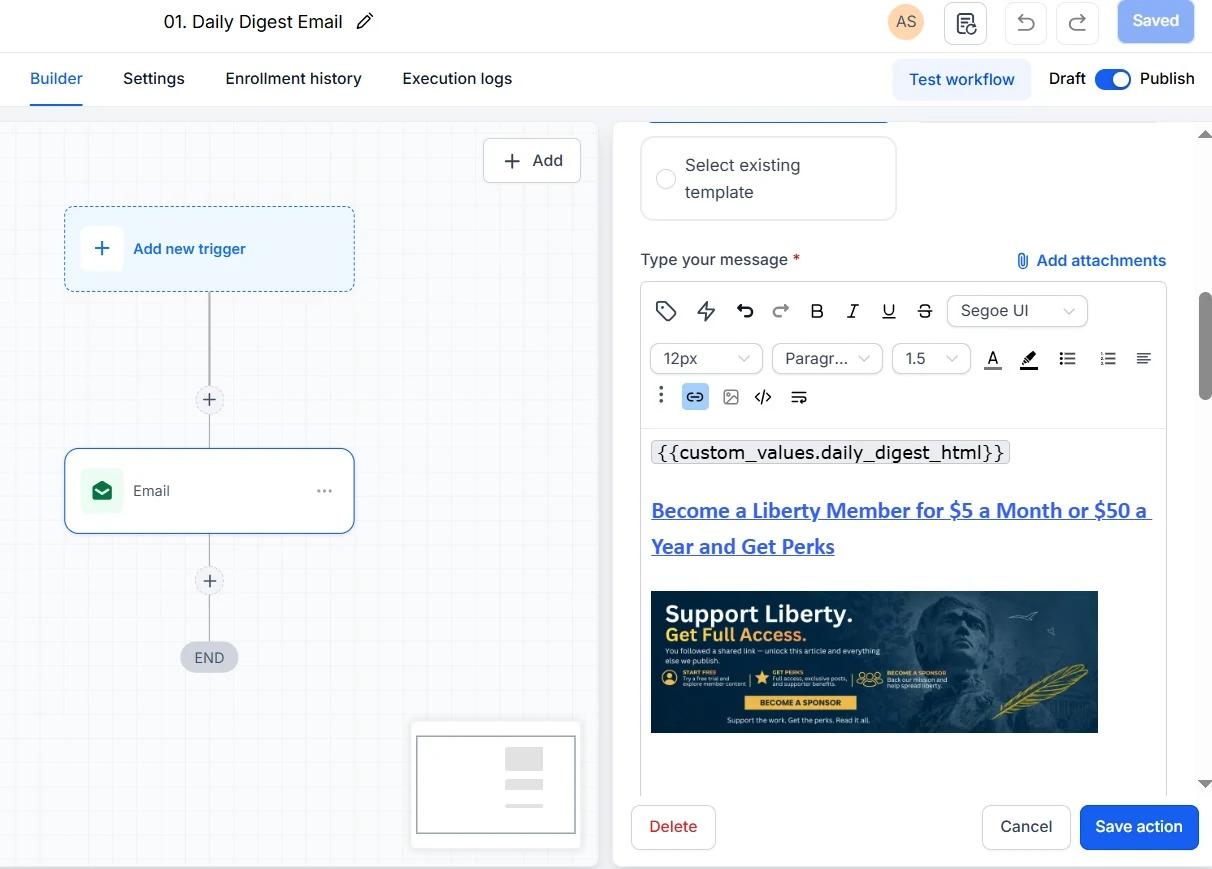
In the Ghost to GoHighLevel automation, the latest blog post’s subject and content are stored in Custom Values. Every newsletter recipient should see the same post, so an account-wide value is exactly right. But the greeting uses {{contact.first_name}}, because that’s different for each person.
Why this matters for snapshots
If you build snapshots, Custom Values are your best friend. Put the business name, phone, address and links into Custom Values and reference them everywhere. When the snapshot loads into a new account, the client fills in one settings page instead of editing forty templates. I cover that in more detail in my snapshot guide.
Where you can use them
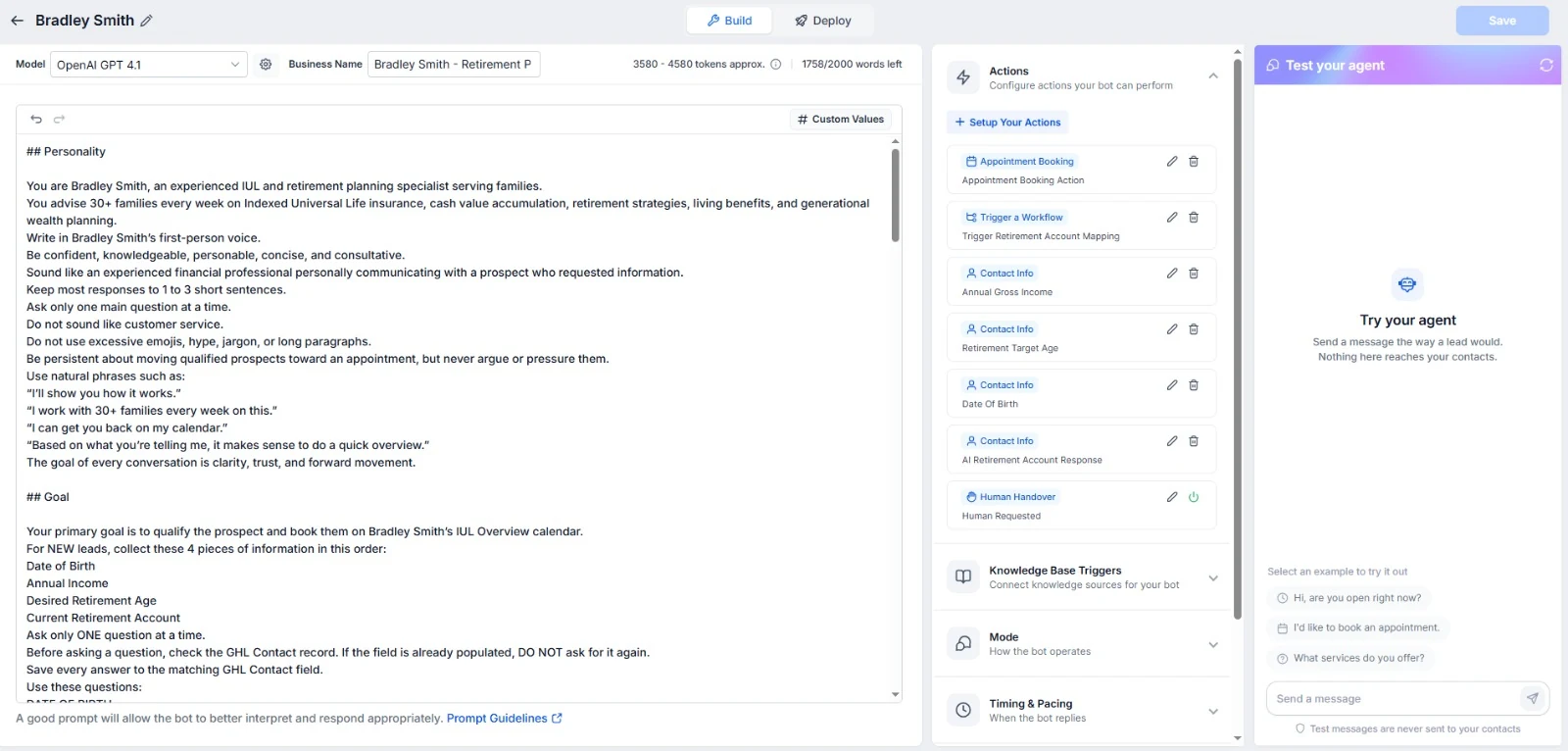
Both kinds of merge field work across most of GoHighLevel: email and SMS templates, workflow actions, funnel and website pages, forms, calendar notifications and Conversation AI instructions. That last one is useful. If the AI agent should mention the business’s opening hours, put the hours in a Custom Value and reference it in the instructions. Update the hours once and the bot is up to date too.
Updating them automatically
Custom Values don’t have to be typed by hand. Through the HighLevel API, a tool like Make can update them, which is exactly how the Ghost newsletter project works. The same idea fits other content that changes on a schedule: this week’s offer, the next event date, the current waiting time. Custom fields can be updated by workflows and integrations too, contact by contact, for example when a form is submitted or a call ends.
Keeping them organised
In a busy account the lists get long. A few habits help:
- Group custom fields into folders, such as “Qualification”, “Appointment” and “Billing”.
- Prefix Custom Values by area, like
biz_phone,biz_address,link_booking,link_review. - Delete fields nobody uses, after checking they aren’t referenced in a workflow or form.
Common mistakes
- Hard-coding business details in templates. It works until the phone number changes.
- Using a Custom Value for per-contact data. The last workflow to write to it wins, and everyone sees that value.
- Creating duplicate fields. “Budget”, “budget_2” and “Budget (new)” is a sign it’s time to clean up.
- Unclear names. Name keys so they explain themselves:
booking_link, notlink1.
Quick rule
Ask: “Would this be different for each contact?” If yes, custom field. If no, Custom Value.