Make.com + GoHighLevel
How I send every new Ghost post as a GoHighLevel email with Make
A walkthrough of a real Make.com scenario that turns a published Ghost post into a personalised GHL email for tagged contacts, using Custom Values.

Hanzla Amjad
· 4 min read
The brief was simple. Articles were published on Ghost, and the GoHighLevel contacts should get each new post by email without anyone copying and pasting it into a campaign. Doing that by hand works for a week or two, then a post gets missed.
Ghost has its own newsletter feature, but their contacts, tags and follow-up all lived in GHL. Running two email lists side by side meant two places to unsubscribe, two sets of stats and a lot of confusion. So the goal was: publish once in Ghost, and let GoHighLevel do the sending.
The shape of the automation
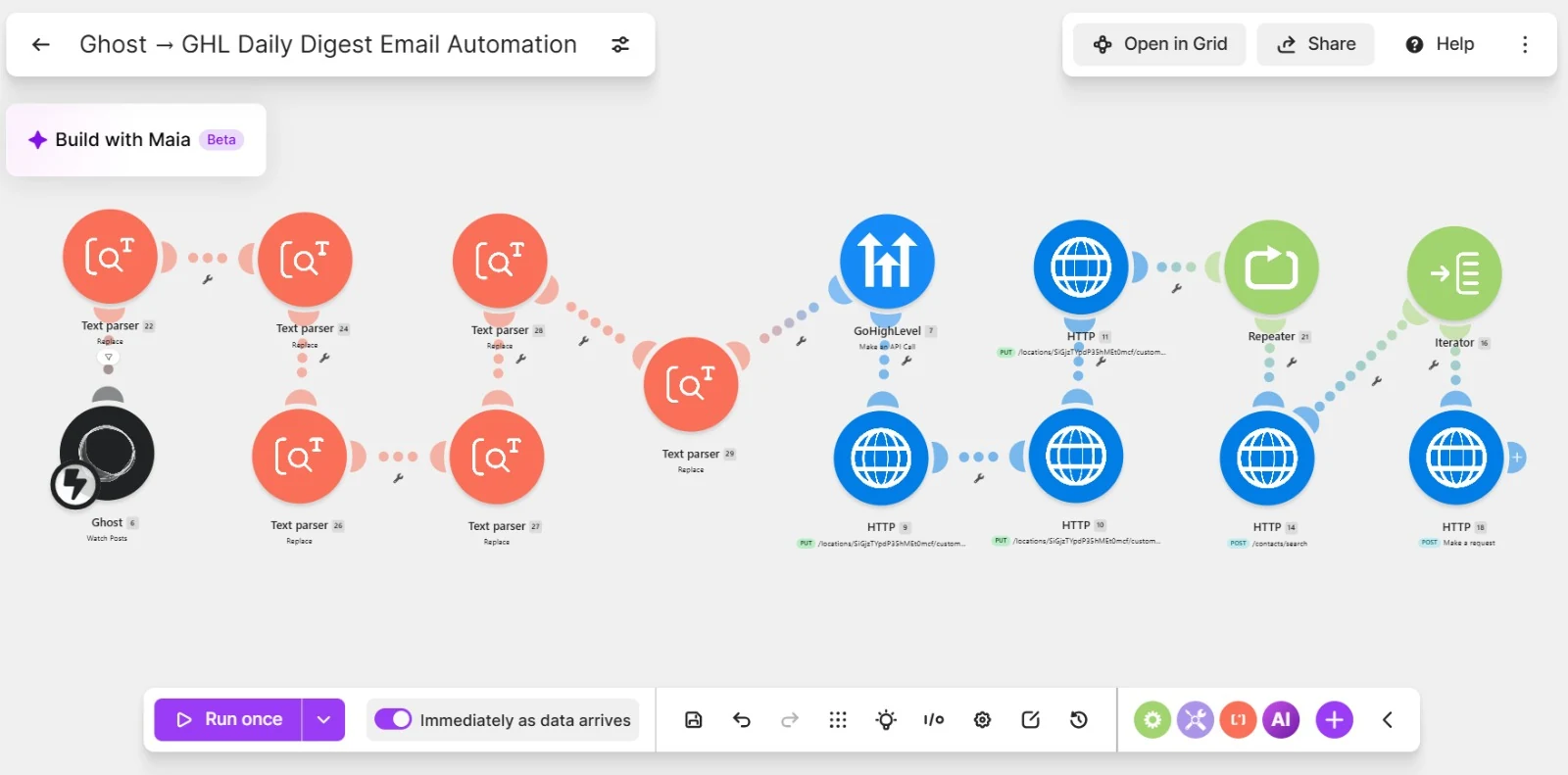
The finished flow has four stages:
- A post is published in Ghost.
- Make.com receives the post and cleans up the content.
- Make writes the subject and body into GoHighLevel Custom Values.
- A GHL workflow sends an email built from those Custom Values to contacts with the right tag.
That’s it. The interesting part is in the details of steps two and three.
Step 1: listening for new posts
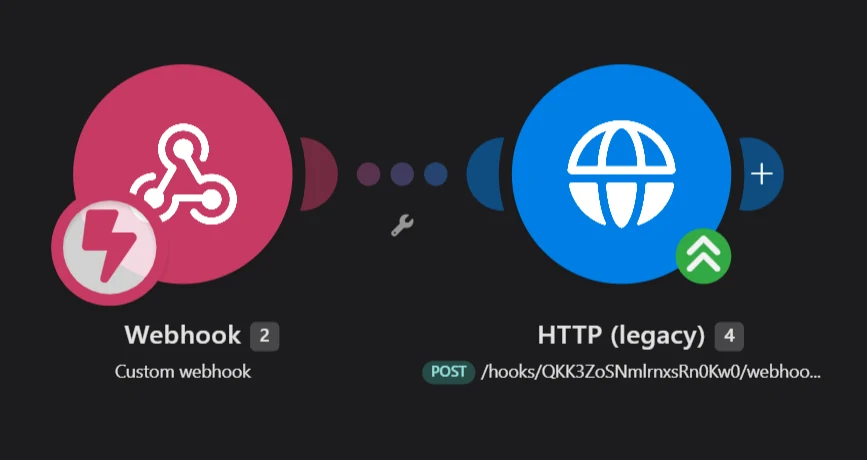
Ghost can call a webhook when a post is published. I created a custom integration in Ghost admin, added a webhook for the Post published event and pointed it at a Make custom webhook. From then on, Make gets the full post payload every time someone hits publish: title, excerpt, HTML, feature image and URL.
One thing to check early: only trigger on published, not on updated. Otherwise fixing a typo sends the whole list another email. It’s the first thing I test.
Step 2: preparing the content
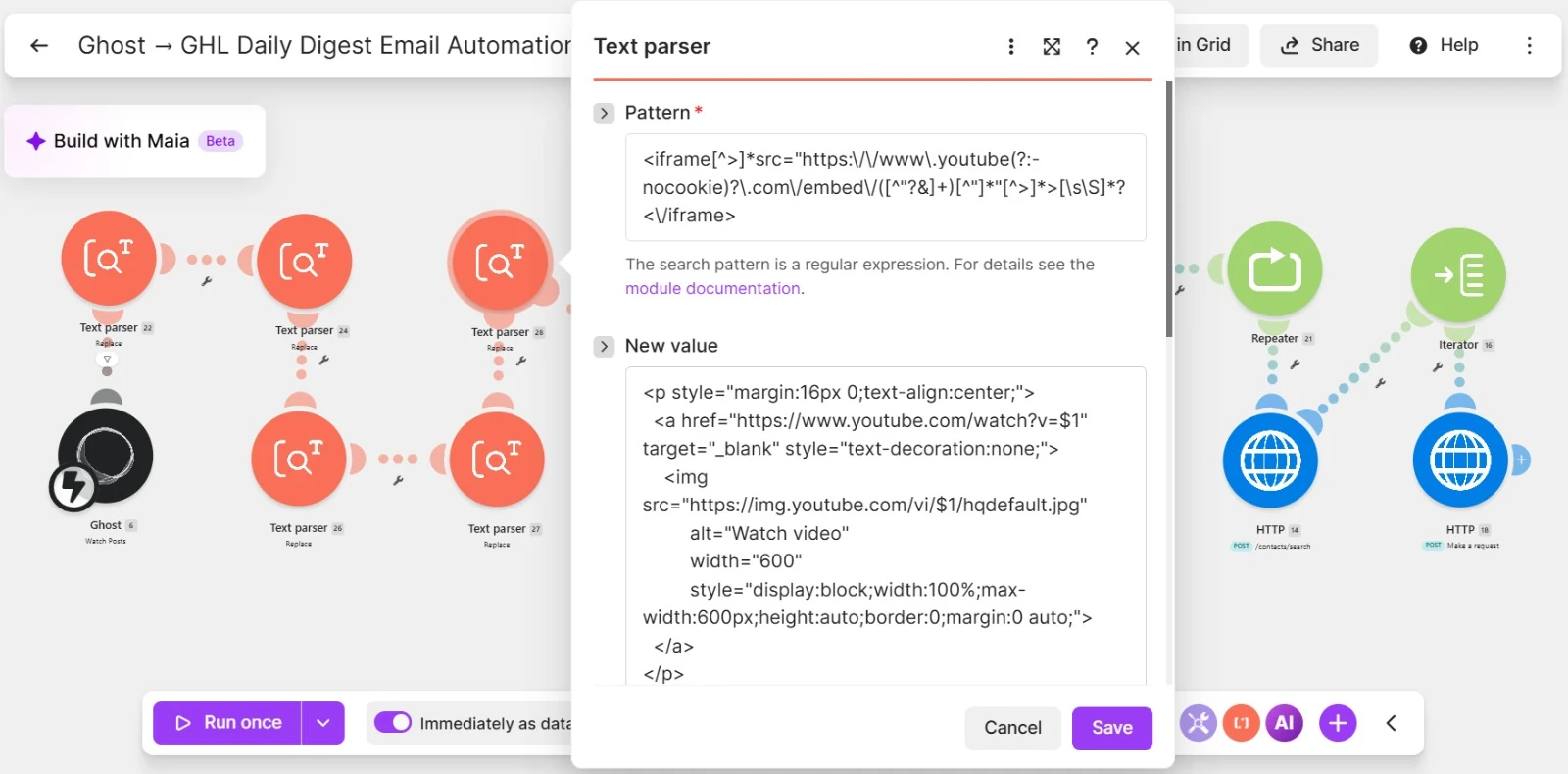
Ghost’s HTML is written for a web page, not an inbox. Embedded cards, galleries and some formatting don’t survive email clients well. I used Make’s text parser modules to replace or strip the pieces that would break, and to build a short version of the post for the email body with a clear “Read the full article” link back to Ghost.
I’d recommend this over sending the whole article. Email clients clip long messages, and you want people on the site anyway. A strong intro, the feature image and one link works better than 2,000 words in Gmail.
Step 3: storing the post in Custom Values
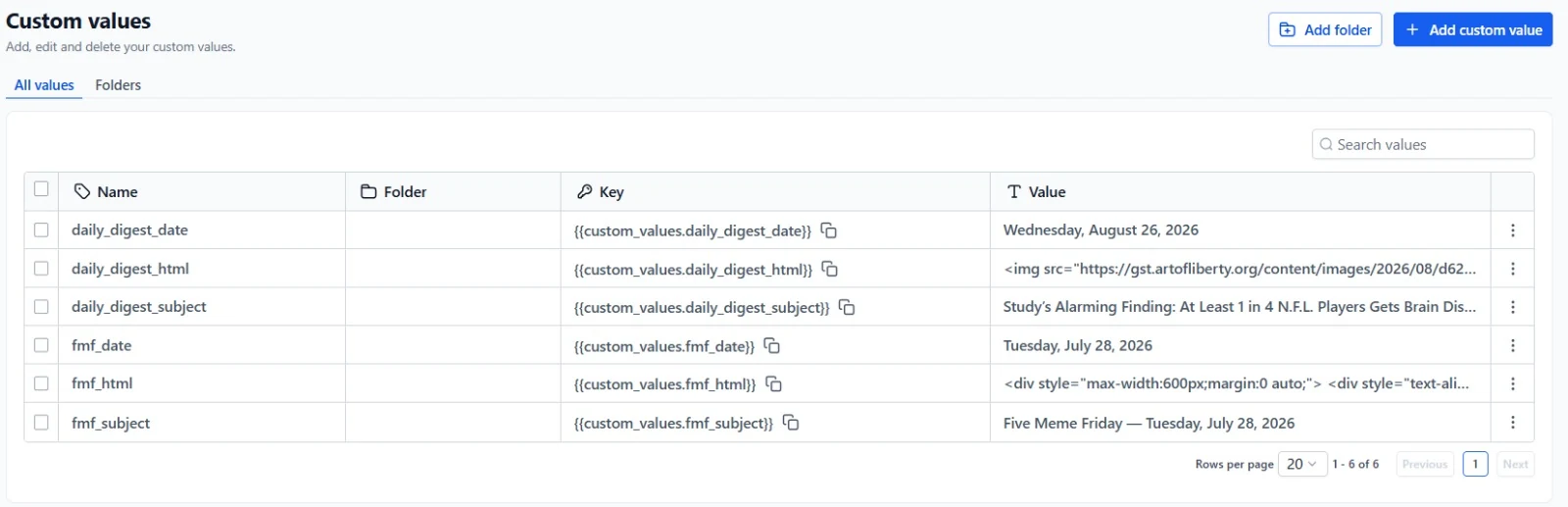
This is the bit people find surprising. Instead of creating a new email in GHL each time, the email template stays the same and its content comes from Custom Values. Make updates two values on every run: one for the subject line and one for the body.
Custom Values are account-wide, so every contact who receives the email sees the same post. That’s exactly what you want here. (If you’re not sure when to use a Custom Value and when to use a custom field, I wrote a separate guide on the difference.)
Step 4: the email itself
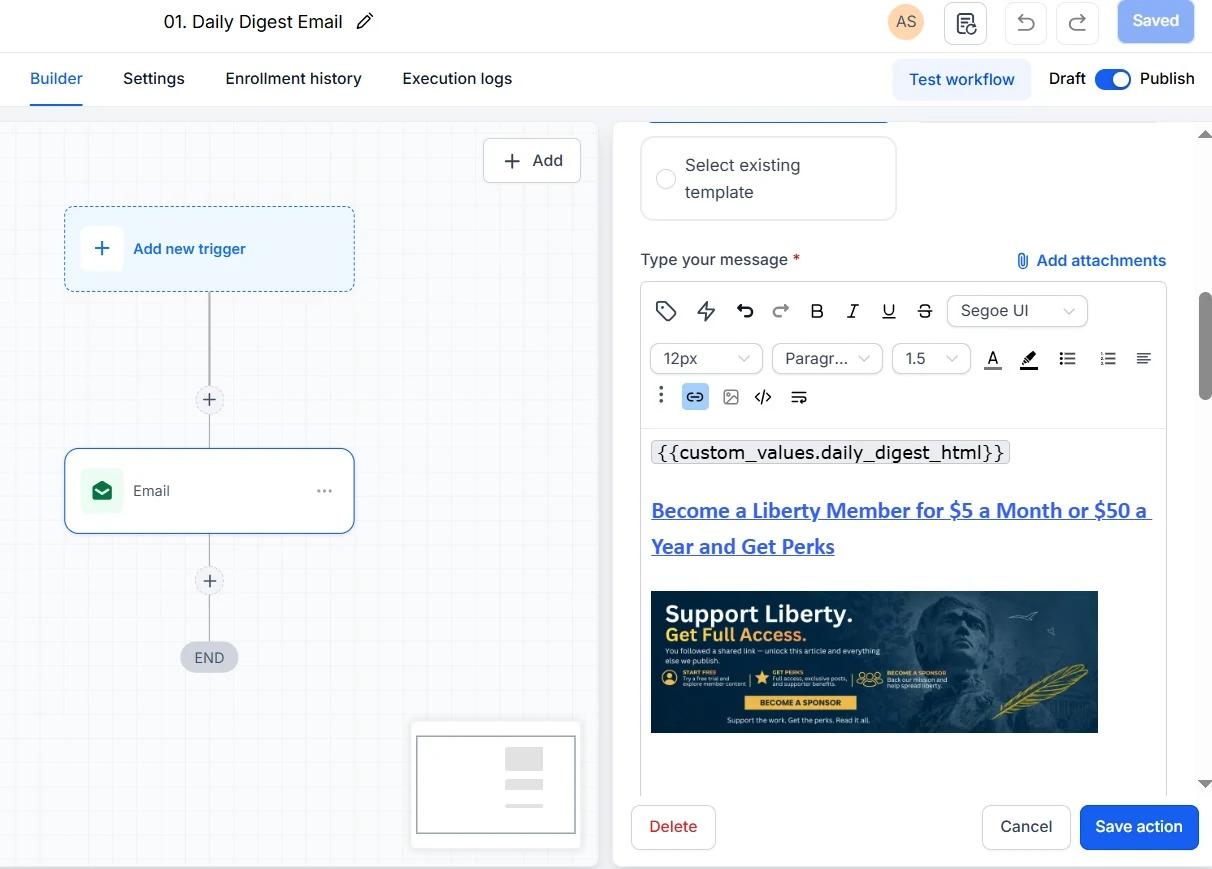
The GHL email template uses merge fields like {{custom_values.latest_post_subject}} in the subject and the body. Personalisation such as the contact’s first name still comes from contact fields, so each email reads like it was written to that person.
Make’s final step starts the GHL workflow that sends to contacts with the newsletter tag. Because the template never changes, the client can adjust the design once and every future post uses it.
Monitoring
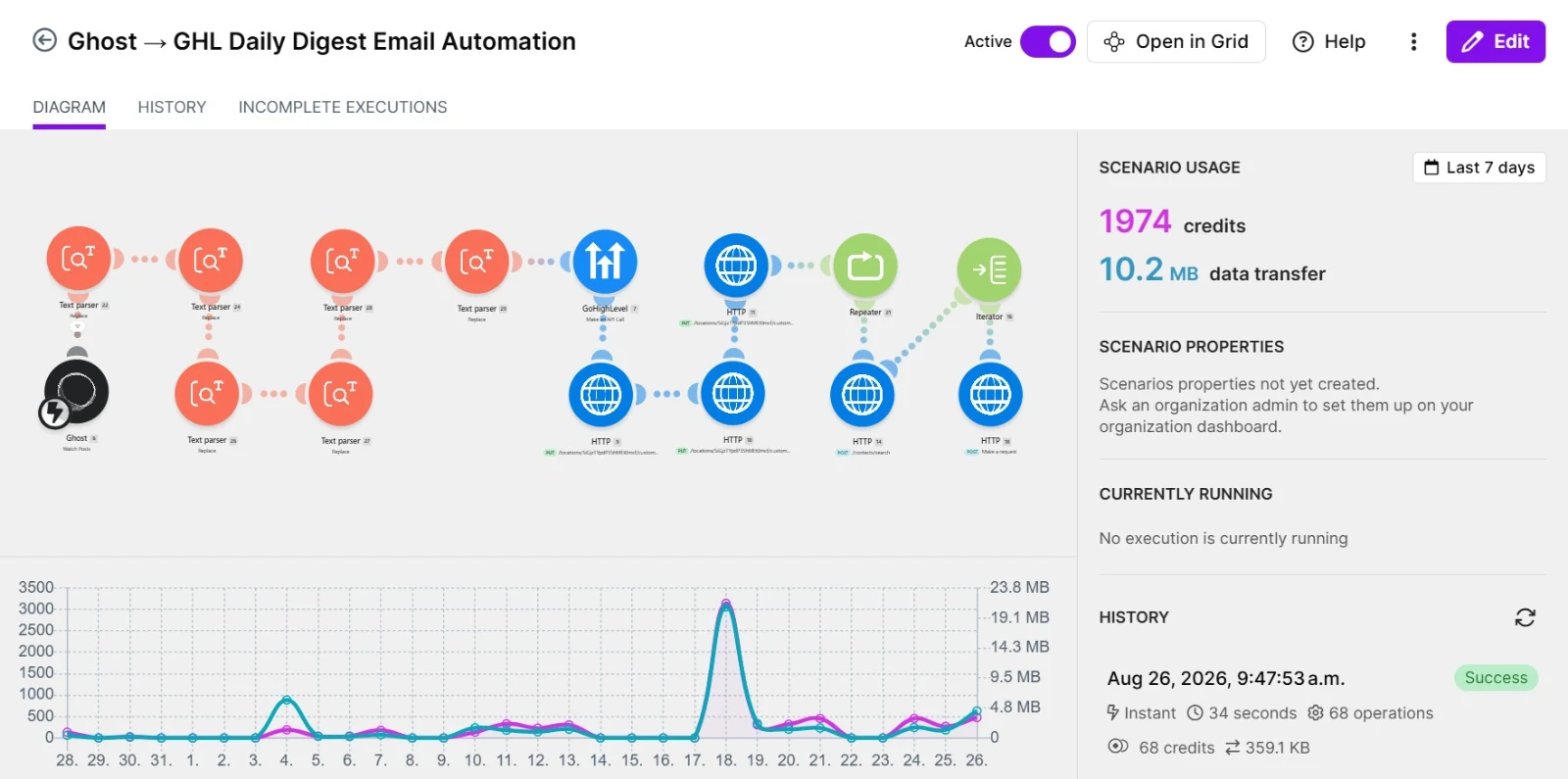
Make keeps a history of every run. When the client asks “did last Tuesday’s post go out?”, the answer is one click away. I also set up an error notification so that if a run fails, someone hears about it the same day rather than a week later.
Variations that work the same way
The pattern isn’t really about Ghost. Any tool that can send a webhook when something new is published can feed GoHighLevel like this: WordPress, a YouTube channel through its RSS feed, a podcast host, even a Google Sheet where someone types the week’s announcement. Make catches the event, cleans the content, writes it to Custom Values and starts the send.
You can also split audiences. Use different tags for different interests and let Make decide which workflow to start based on the post’s Ghost tag. A post tagged “automation” goes to one list, a post tagged “funnels” to another, and the template stays shared.
Things I’d check before copying this
- Timing. Updating the Custom Values and sending must happen in order. If two posts are published within seconds, the second can overwrite the first before it’s sent. For a blog that posts a few times a week this never comes up, but it’s worth knowing.
- Opt-outs. Send only to contacts who agreed to receive the newsletter, and keep the unsubscribe link in the template.
- Test contacts. Run it against a tag that only contains your own email first. Publish a draft-quality test post, check the email on mobile, then switch to the real tag.
It’s a small automation, but it removed a weekly chore and made sure every post actually reached the people who wanted it. That’s usually how the best automations look: boring, reliable and invisible.